Custom Rumble Setup Guide
Step by step walkthrough from inviting the bot to launching your first custom game theme.
From the All servers page, find your server and click
You MUST drag the bot's role above your user roles.
Open Server Settings → Roles and drag the bot's role above any role you want it to mention during a game. If the bot sits below your member roles it cannot tag players, and your rumbles will look broken.
Open your server in the dashboard and head to the Phrases tab. Each server has two custom game slots. Name your theme (this is what hosts pick when they start a rumble) and you're ready to fill in events.
A rumble is built from four kinds of events. Every line starts with a number and uses (p1), (p2), etc. as player slots that the bot fills with real members at runtime.
The rules
- Use
(p1)for the attacker and(p2)for the victim in elimination events. - Each event must start with a number (
1.,2.,3., …). - We recommend at least 25 elimination events for a smooth game.
- Use the Preview button under each importer to validate format before saving.
| Event type | Slots | Suggested | Example |
|---|---|---|---|
| Elimination | (p1) and (p2) | 25+ | 1. (p1) tossed a fake breadcrumb into the bushes. (p2) waddled after it and never made it back to the pond. (p1) is the attacker, (p2) is the victim. |
| Self-elimination | (p1) | 15+ | 1. (p1) walked into the crypt alone and was never seen again. Solo events. The player removes themselves from the game. |
| Non-elimination event | (p1) | 12+ | 1. (p1) tripped over a root, dusted themselves off, and kept moving. Flavor beats. No one is removed from the game. |
| Multi-elimination | (p1), (p2), (p3), … | 10+ | 1. (p1) lit the fuse. (p2) and (p3) didn't make it out in time. One attacker, two or more victims. Use as many (pN) slots as you need. |
Each event type has its own bulk importer. Paste one numbered line per event, hit Preview, and the dashboard validates every line before saving. Lines that fail validation are flagged so you can fix them in place. The importer trims blank lines and duplicates, so pasting straight from a doc is safe.
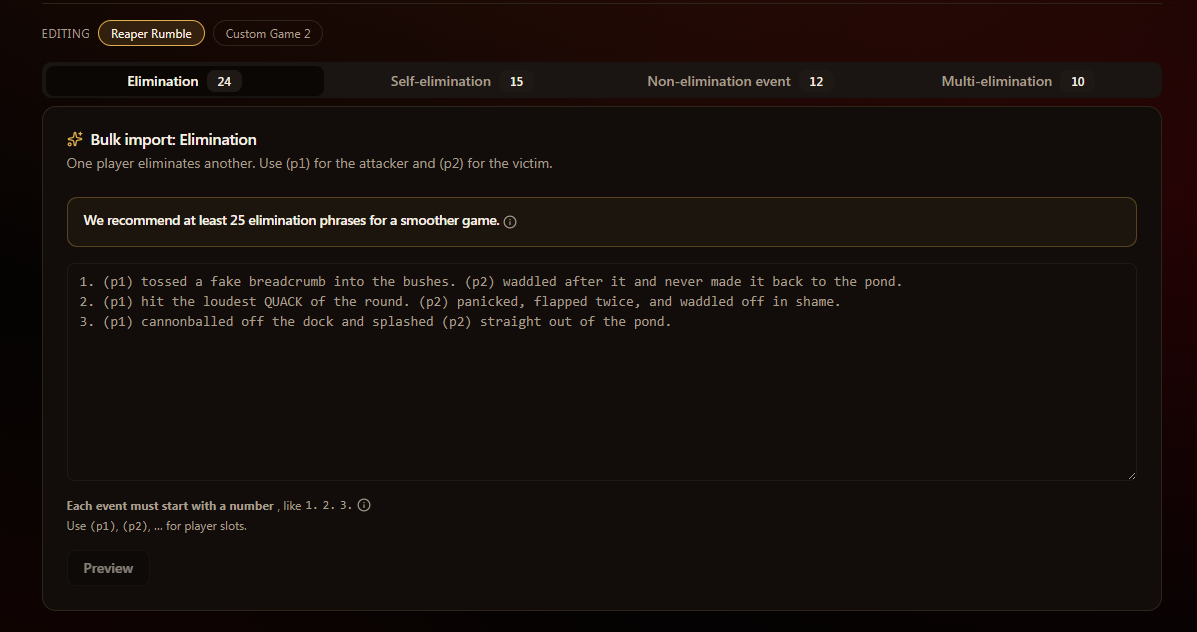
The tabs across the top let you swap between Elimination, Self-elimination, Non-elimination event, and Multi-elimination. The counts on each tab show how many phrases are saved.
Open the Images tab. Each theme has slots for the moments of a rumble. Paste a direct image URL (Discord CDN, Imgur, your own host) or use Upload file to store the image with us (PNG, JPG, WebP, or GIF, max 5 MB each).
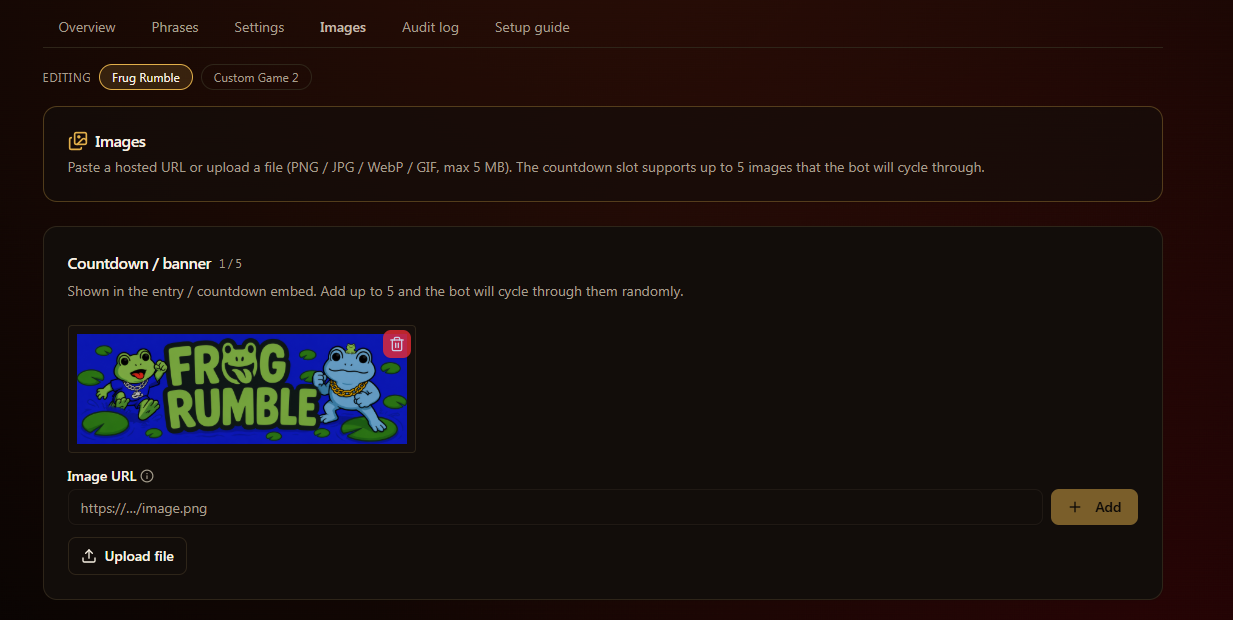
- Countdown / banner: shown in the entry / countdown embed. Add up to 5 and the bot will randomly cycle through them, so no two rumbles in a row feel identical.
- Revive prompt, Revive: risen, and Revive: no one rose: the three frames of the revive round.
- Winner card: pinned to the winner card at the end of a rumble.
Open the Settings tab to dial in the wording and look of your theme. Most of this is optional, but it's what makes a custom rumble feel like yours.
- Basic: theme name, embed color, start-button emoji, enter-button text, and the intro sentence on the entry card.
- Event types: toggle self-elimination, non-elimination, and multi-elimination on or off. Elimination is always on, and revives are always on.
- Revive round wording: customize the puzzle title, prompt sentence, result sentences, and the two button labels players click to guess.
- Round event emojis: pick up to 5 emojis that appear before each event line during a round. Leave blank to use the default Reaper set.
- Winner card: override the italic sentence shown under WINNER. Use
{winner}to insert the winner's name.
Once each event type has enough phrases, your custom theme is ready. Use /testfill in a private channel to dry-run with bot-filled players and confirm the wording looks right, then run /start for the real thing and pick your custom theme from the list.
Anyone with Manage Server, or a role you've authorized via /rumble-config, can start games, run /testfill, and edit the active theme from Discord.